

Cortico is a COMPLETE Accuro EMR integration partner, supporting bi-directional sync across scheduling, patient demographics, and messaging. Once connected, your clinic can offer patients online booking, automated reminders, and two-way messaging — all writing back into Accuro in real time, without changing your existing EMR workflows.
This guide outlines the steps to prepare for connecting your Accuro EMR to Cortico.
How to Connect Your Accuro EMR to Cortico
Connecting Accuro to Cortico involves some coordination between your clinic and Accuro's technical team. The Accuro API connection requires a contract sign-off from Accuro that takes up to 30 days. Cortico initiates that process on your behalf once you send the approval in Step 1.1.1 below, so plan for that window before your target go-live date.
Step 1.1.1 Send your approval to Cortico
Email help@cortico.ca with a list of the active doctors who will be using Cortico with Accuro. This is your clinic's approval for Cortico to proceed with the connection request on your behalf.
Use the template below and fill in your provider names and clinic details:
Subject: Accuro Connection Request — [Clinic Name]
Hi Cortico team,
We would like to connect our Accuro EMR to Cortico. Below are the active providers who will be using the integration:
Dr. [First Last] — [Specialty, optional]
Dr. [First Last] — [Specialty, optional]
Please let us know the next steps.
Thank you, [Your name] [Clinic name] [Phone number, optional]
Step 1.1.2 Cortico requests API access from Accuro
Cortico completes this. No action is required from the clinic’s side for this step.
Once Cortico has your approval, the team will contact Accuro's technical team directly to request API access for your clinic. Accuro will send documents for signatures required to authorize the connection.
Approval can take up to 30 days. Cortico will follow up with you once Accuro has completed its review.
Step 1.1.3 Accuro confirms your clinic's connection credentials
Once the Accuro API approval is complete, Accuro will provide the Practice UUID and Tenant ID for your clinic's instance. Cortico uses these credentials to complete the technical connection on the backend.
No action is required from your clinic at this stage. Cortico will confirm when the connection is ready to configure.
Step 1.1.4 Share your scheduling configuration with Cortico (optional)
Before the Pilot meeting, provide Cortico with any of the following Accuro configurations your clinic uses under Schedule Management:
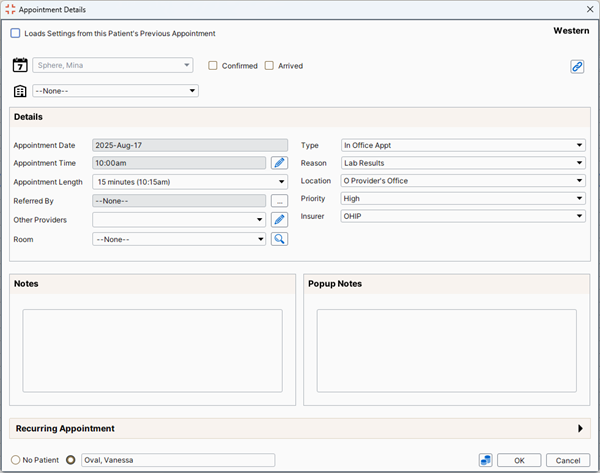
Appointment Suggestions
Appointment Type
Appointment Reason
Appointment Status (Accuro Schedule > Priorities, Reasons and Statuses)
This step helps Cortico map your scheduling setup to the Cortico booking flow before the Pilot meeting, reducing setup time.
Step 1.1.5 Attend your Pilot meeting with Cortico
Cortico will meet with your clinic for product orientation and any remaining setup steps. The content of this meeting varies depending on which Cortico tools your clinic is activating.
The Pilot meeting takes approximately 90 minutes.
Step 1.1.6 Go live with Cortico
Your initial Cortico services will be active shortly after the Pilot meeting. Cortico will confirm your go-live date and walk your team through the handoff.
Launch takes 1 to 3 days. Once live, the next configuration step is setting up your provider schedules in Accuro so that patient availability maps correctly for online booking.
Frequently asked questions
Does Cortico work with Accuro EMR?
Yes. Cortico is a COMPLETE integration partner with Accuro, meaning core scheduling, patient demographics, and messaging sync between the two systems. Cortico pulls live schedules and patient demographics from Accuro, and writes new bookings, intake responses, and messaging back into the chart in real time. The Accuro Integration overview covers the full list of features available for Accuro clinics.
How do I connect Accuro to Cortico for online booking?
Start by emailing help@cortico.ca with a list of the active providers who will use Cortico. That triggers Step 1.1.1 of the process above, where Cortico requests the Accuro API connection on your behalf. Most clinics are live within 1–2 weeks of the Accuro API approval being completed, which takes up to 30 days from when Cortico submits the request.
Where can I find Accuro EMR training and onboarding resources?
Accuro maintains a library of training resources, including the Accuro Learning Academy (free self-directed courses, webinars, and workflow guides) and the Accuro user guide for feature-specific documentation. For questions about how Cortico works within your Accuro setup, the Cortico team supports that layer of the integration.
Is Accuro a cloud-based EMR?
Yes. Accuro is a cloud-hosted EMR, which means your clinic's data and schedules are accessible without managing on-site servers. Cortico connects to Accuro through its cloud APIs, so no additional infrastructure is required on your end to run the integration.
Using Cortico with Accuro
Accuro clinics use Cortico as the patient-facing layer of their practice, handling the communication and booking touchpoints that sit outside the EMR. As a COMPLETE integration partner, Cortico syncs core scheduling, patient demographics, and messaging with Accuro in real time: new bookings appear in the schedule, intake responses attach to the chart, and patient contact details stay in sync.
Accuro clinics most commonly activate these Cortico features:
Online scheduling — patients book directly into Accuro provider schedules without calling the clinic, with appointment type and reason mapped to your existing Accuro configuration
Appointment reminders — automated SMS and email reminders sent from your Accuro schedule, reducing no-shows without manual follow-up
Digital intake forms — pre-visit forms completed by patients before they arrive, mapped back into the Accuro chart
Secure patient messaging — two-way messaging that keeps communication out of the phone queue, with conversation history logged to Accuro
To confirm which tools are available on your plan, the Cortico team can walk you through what is active for your clinic. If you’re not yet on Cortico, book a demo at cortico.health.
Next step: Step 1.2 — Set up your billing information →