

How It Works
You can either:
Select a pre-defined booking range, or
Set a custom date range
If no booking range is specified, the system will automatically use the default booking range configured for that workflow under the Settings page.
Default Booking Range Example
For example:
• The Family Doctor workflow has a default booking range that allows appointments to be booked from 1 hour up to 90 days in advance.
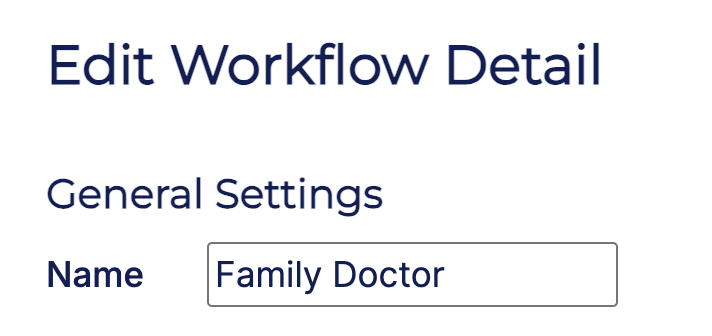
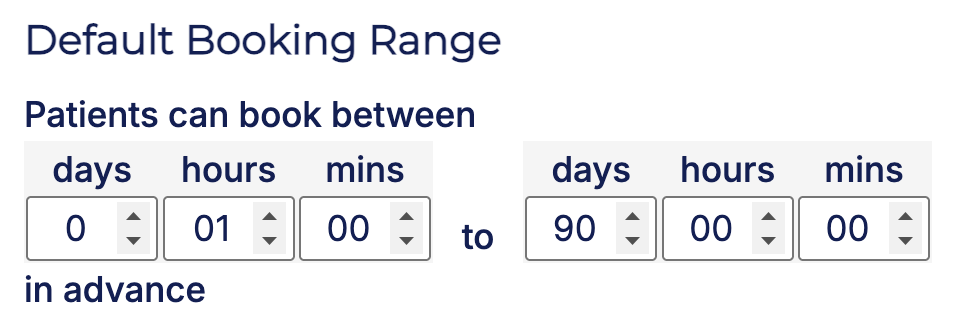
If no custom range is selected in the Request to Book invitation, patients will automatically see availability based on the default booking range set for the selected workflow (e.g., up to 90 days in advance).
Preset Booking Range Options
You can quickly choose from the following preset options:
• 2 weeks • 1 month • 3 months • 6 months
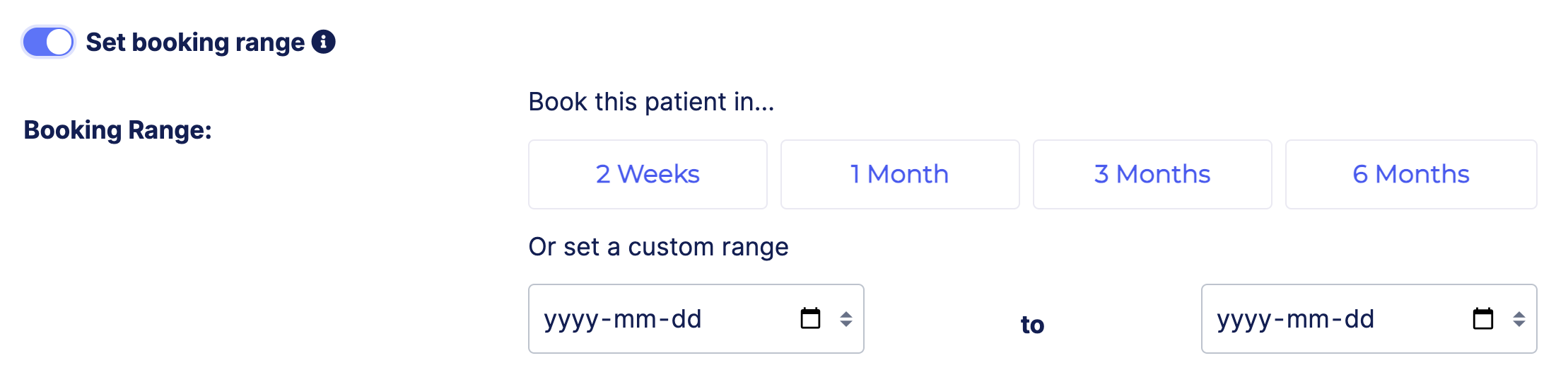
Selecting one of these options will automatically adjust the booking range.
Example:
• If 1 month is selected and the Request to Book invitation is set up on April 15, patients will see availability from May to June.
Booking Range Limits:
If the selected booking range exceeds the workflow’s default limit, an error message will appear.
Example error: “Bookings for this workflow are limited to 90 days in advance. The selected range starts at 180 days, which exceeds this limit.”
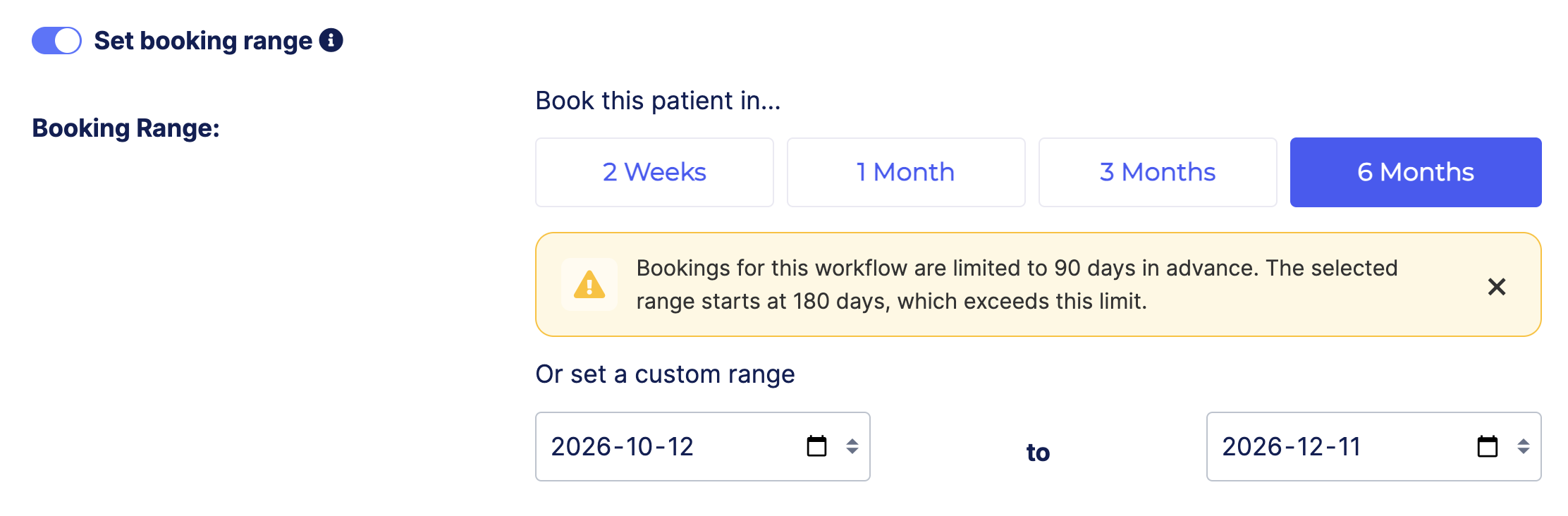
This ensures that booking availability always stays within the allowed range for that workflow.
Setting a Custom Booking Range
To define a custom range:
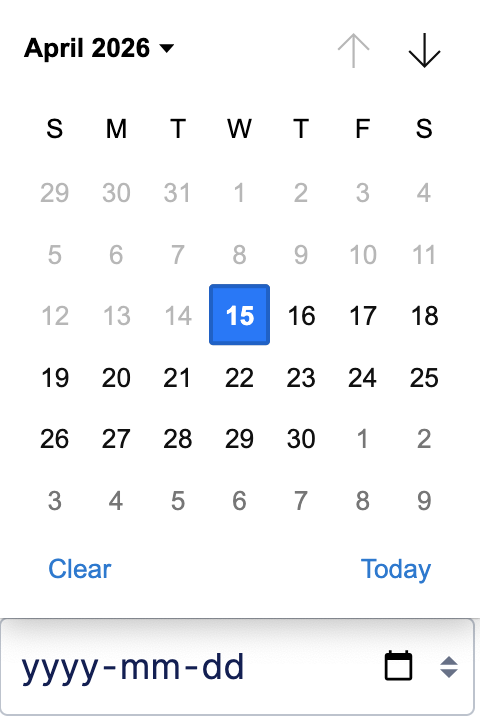
Click the calendar icon in the first field
Select a start date
Click the calendar icon in the second field (far right)
Select an end date
Patients will only see available appointment times within the selected range.
Why Use a Booking Range?
Setting a booking range helps you:
Control how far in advance patients can book
Limit scheduling to appropriate timeframes
Manage provider availability more effectively
Align bookings with clinic policies or operational needs