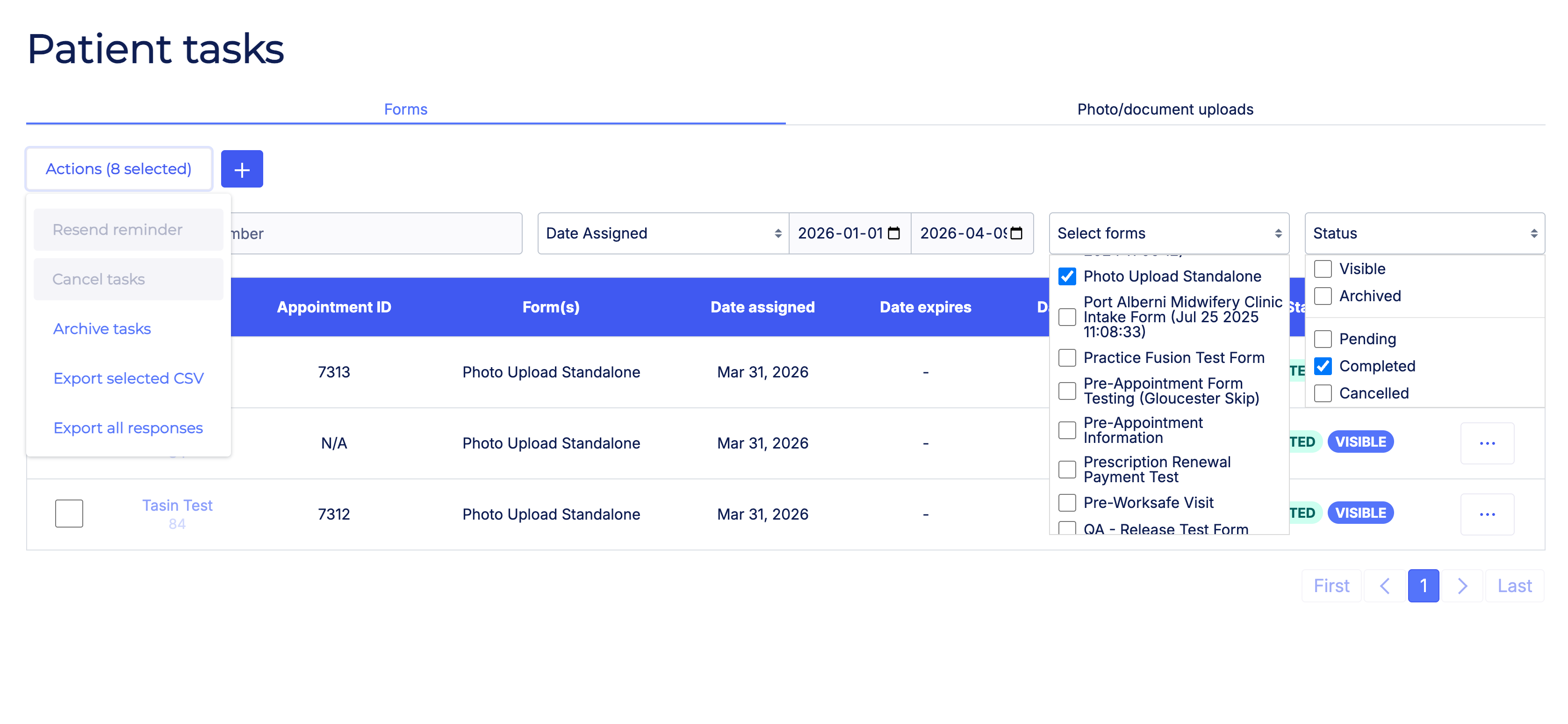
Sometimes, you may want to view the form responses from more than one patient at a time. By exporting the form responses as a CSV, you can open the file in Excel or Google Sheets and view all the responses in a spreadsheet.
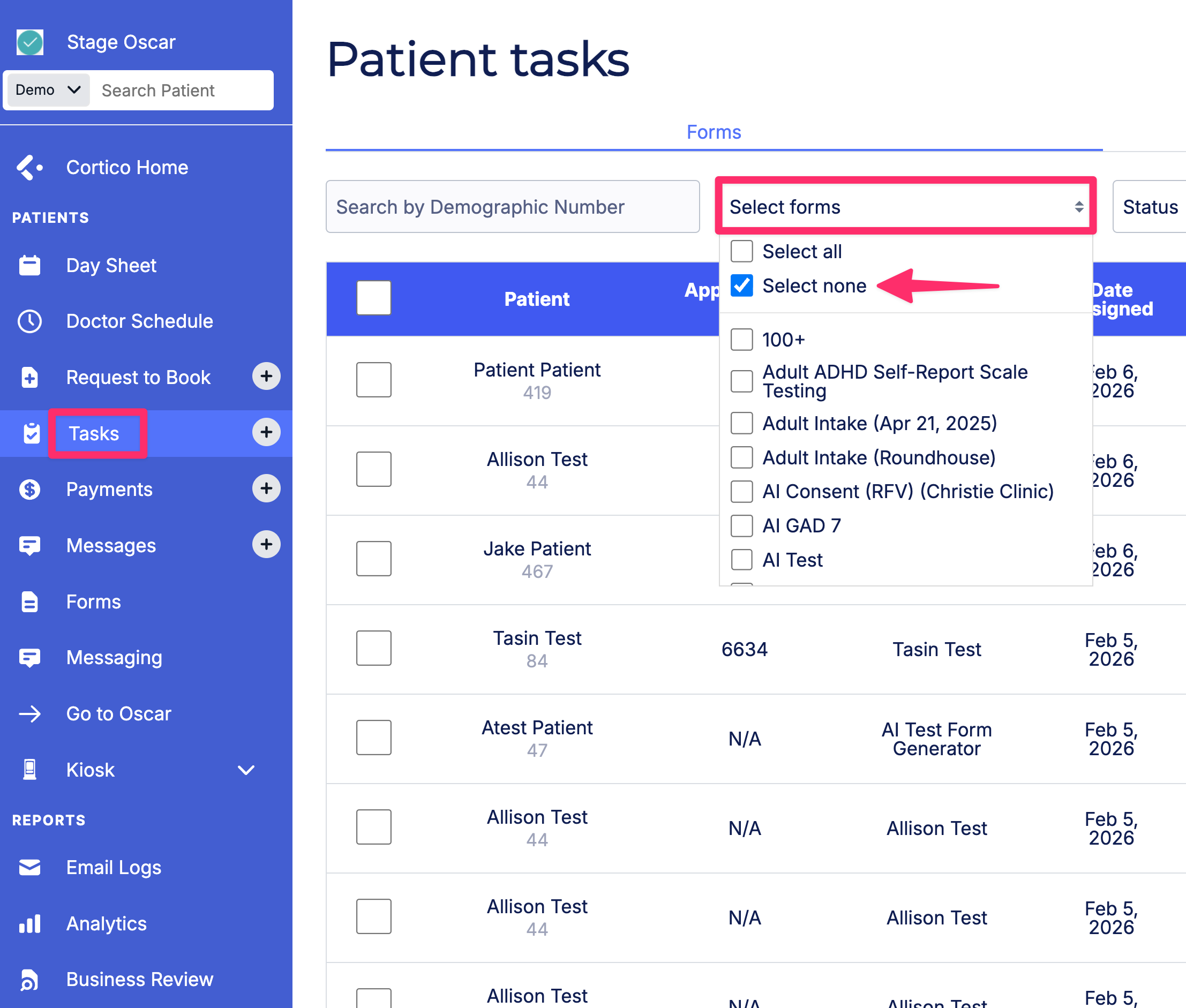
Navigate to the Tasks page from the sidebar of your Cortico Dashboard
Click on "Select forms", then on "Select none"
Choose the form you want to export the responses for. Note, you can only select one form for each export
Check the box next to each of the patient responses you want to include in the export. Note, you can only select responses with the "Completed" status
Click the Actions button
Click on "Export CSV"
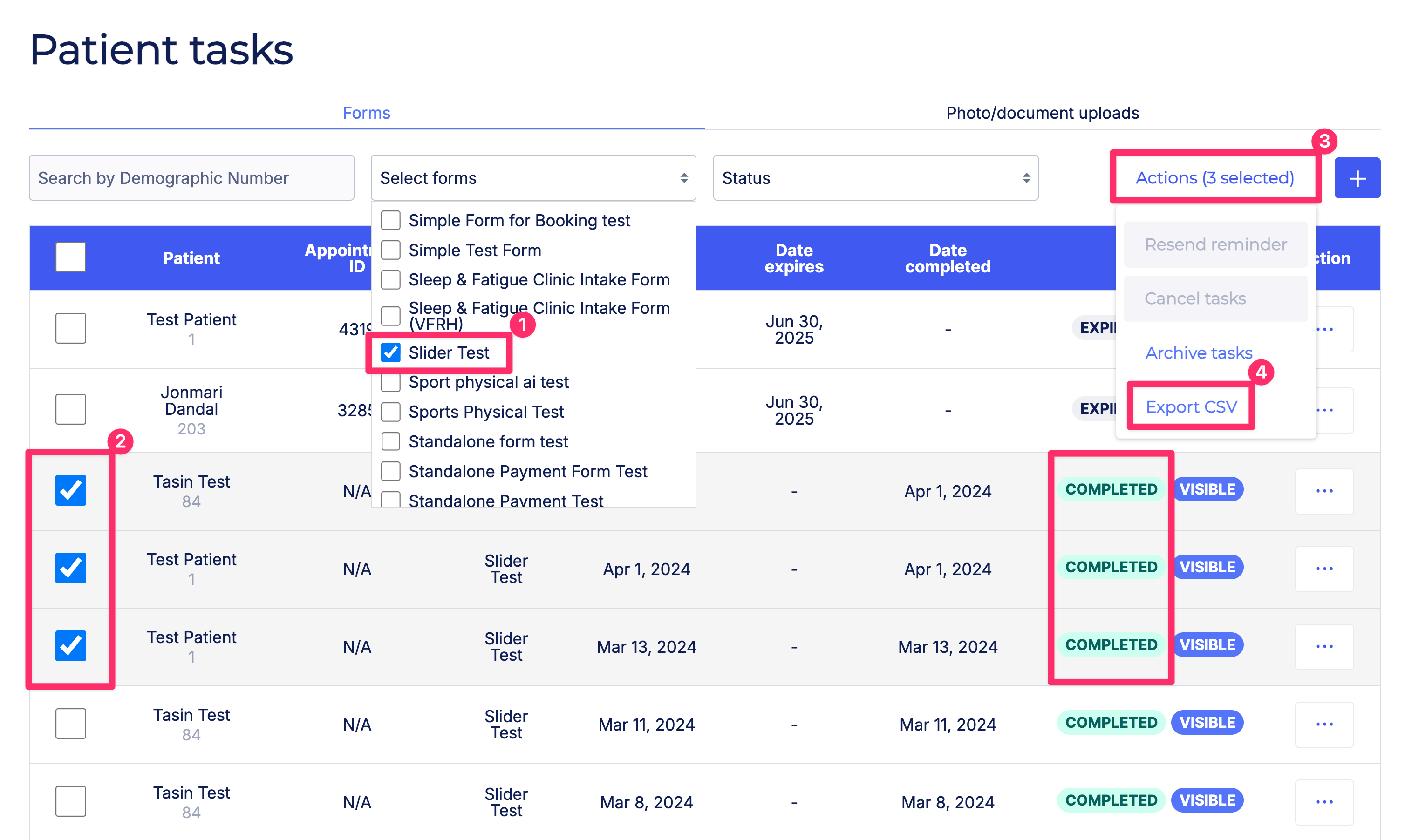
Your CSV file will now be downloaded to your computer.
Exporting Forms with a Date Range
To export form responses from a specific date range, set the start and end dates. Then follow steps 1-4 above.