

Summary:
AI Voice Number and Chat patients can use to:
Confirm/cancel
Book appointments, same as Cortico Web Booking
Register new patients when allowed.
Ask general questions about clinic such as operating hours.
Can say "staff" at any time to be forwarded to clinic phone.
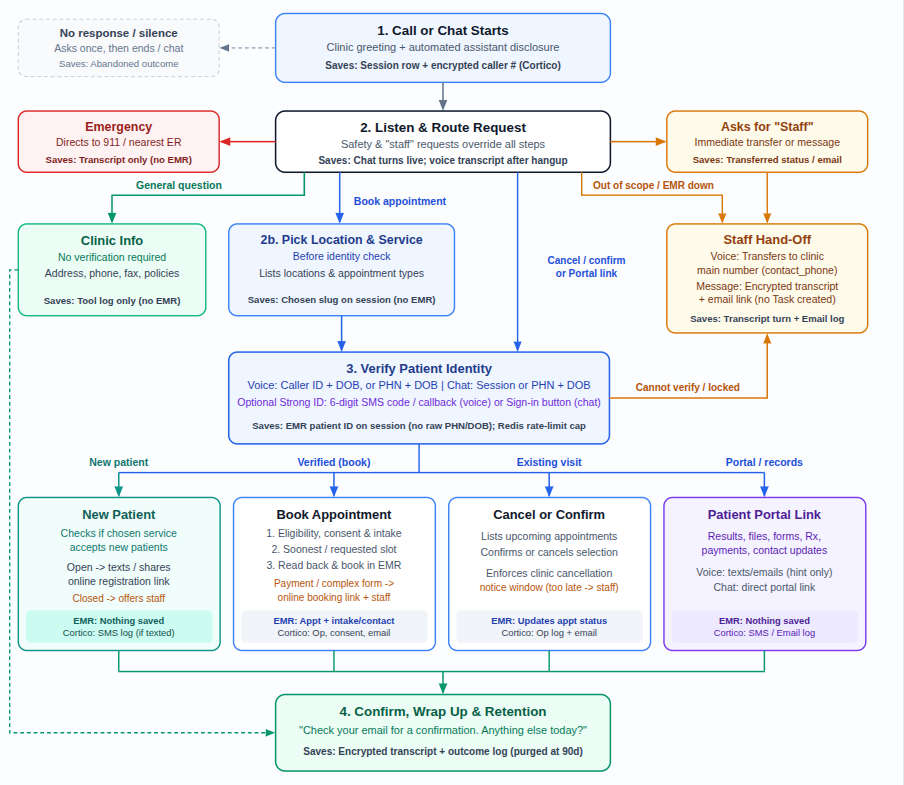
Safety and Privacy
No medical advice: Never diagnoses conditions or gives medication guidance; directs emergencies to 911.
No record disclosure before verification: Unverified lookups never reveal whether a chart exists and stop after two failed attempts.
Contact masking: Full phone numbers and email addresses on file are never spoken aloud; only partial hints (such as "ending in 34") are shared.
Encrypted at rest & audited: Transcripts, caller numbers, messages, summaries, and temporary booking intake are encrypted with a per-clinic key in S3; every staff transcript read is audit-logged.
Automatic 90-day purge: After 90 days (configurable), Cortico automatically blanks transcript text, summaries, recording links, caller numbers, verified patient IDs, and session state. Only non-PHI counts and outcomes stay for reporting.
Checklist Before Enabling
Set your clinic's main phone number (for "staff" transfers): Open
https://clinic.cortico.ca/clinic-profile/and verify Contact phone number (contact_phone) is set and different from the assistant phone line so "staff" transfers ring your front desk instead of looping.Set your internal clinic email (for message notifications): Open your clinic record at
https://clinic.cortico.ca/admin/django_app/clinic/and verify Internal email (internal_email) is filled in. When a patient leaves a message, Cortico emails this address a no-PHI alert linking directly tohttps://clinic.cortico.ca/admin/ivr/assistantsession/<id>/transcript/.Review your online booking workflows & policies: Open
https://clinic.cortico.ca/settings/?tab=workflowsand check each active workflow's Allows new patients? (allow_new_patients), Cancellation Window (Allow patients to cancel online andcancel_appointment_time_limit), and intake questions. Review your booking policy text athttps://clinic.cortico.ca/settings/?tab=policies- the assistant enforces the exact same rules.Add optional clinic-specific instructions: Open
https://clinic.cortico.ca/settings/?tab=generaland fill in Assistant instructions (assistant_prompt_addition) for details like hours, parking, or clinic notes (added after safety rules, which it cannot override).Enable assistant channels & optional security settings: Open
https://clinic.cortico.ca/admin/django_app/clinicconfig/and edit (or create) thekey = assistantconfig for your clinic. Set the channels you want invalue:voice,chat,web_voice(requiresvoice: true), andsms, plus optionalbooking,caller_id_recognition,salutation, andstrong_identity(enabled,methods,required_for).Configure your assistant phone line (voice only): Open
https://clinic.cortico.ca/admin/ivr/clinicphoneline/and verify Number (number), Language (language), Is active (is_active), and optional Voicemail number (voicemail_number). Run the admin action Push assistant config to Telnyx to sync changes live.Know where to view transcripts: Staff can review all sessions at
https://clinic.cortico.ca/admin/ivr/assistantsession/and click Open the transcript (every read is recorded on your clinic's audit log).