

1. What is Cortico AI?
Think of Cortico AI as your smart digital assistant built right into your patient charts. It handles the heavy lifting of paperwork—like summarizing long charts, drafting letters, and organizing files—so you can spend less time typing and more time with patients.
The Golden Rule: You are always in control. The AI only suggests drafts; it is up to you to review, edit, and approve everything before it is used.
2. The Main Screen & Buttons
The Cortico AI Workspace is the central place where users can interact with Cortico AI while working inside the patient chart.
From this workspace, users can ask questions, generate summaries, create drafts, use one-click actions, review patient context, upload supporting files, and access previous conversations.
The workspace is designed to stay connected to the user’s workflow. Users can continue navigating the chart, minimize the plugin window, or expand the workspace when they need more room.
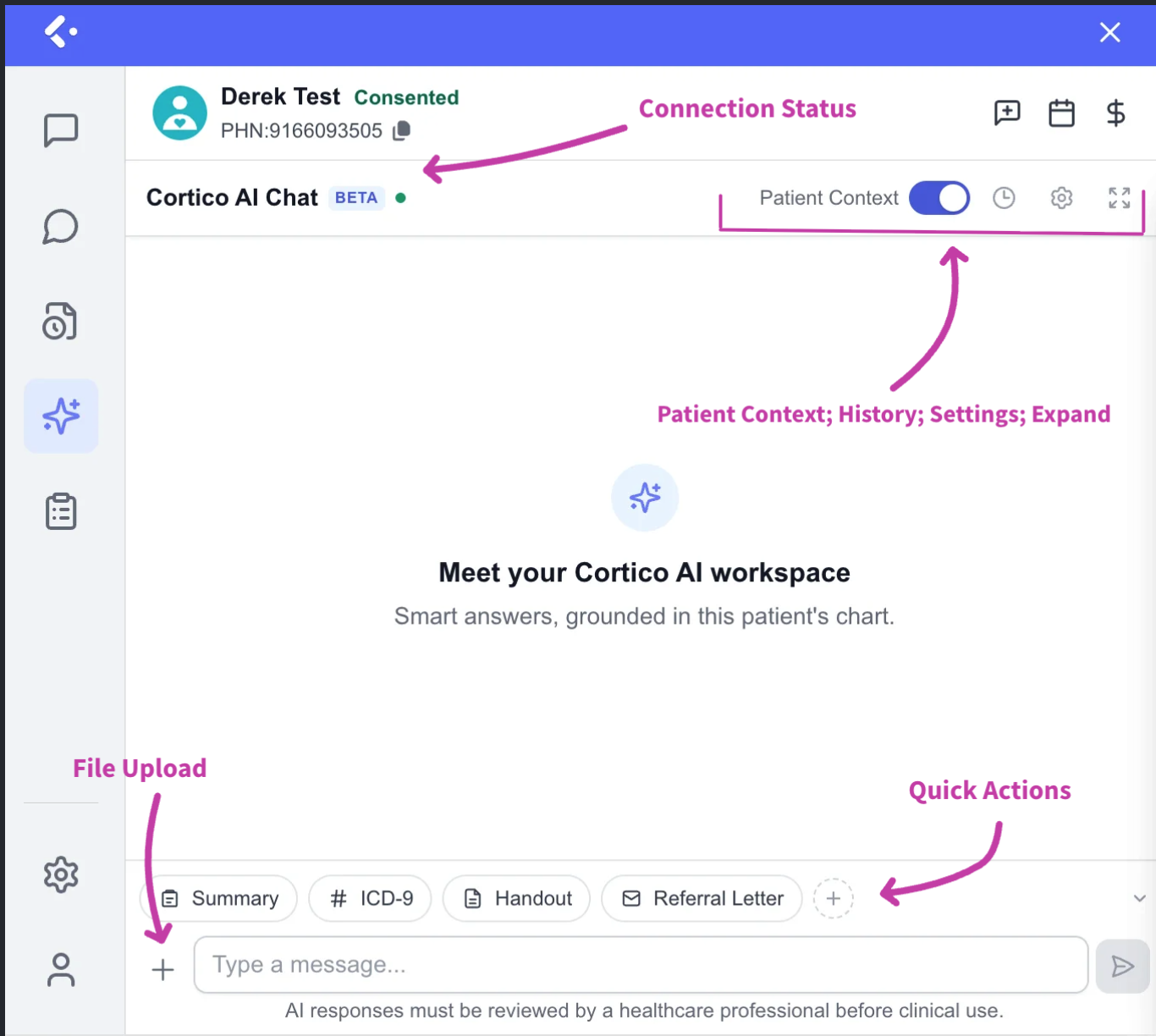
Status Light (Am I connected?)
Look for the colored dot on your screen to see if Cortico AI is ready:
🟢 Green: The AI Workspace is online and connected.
🟡 Yellow: The AI Workspace is connecting or partially connected.
🔴 Red: The AI Workspace is disconnected.
For any persistent issues, don’t hesitate to contact us at ai@cortico.health
Key Settings to Know
Patient Context Toggle (ON/OFF): When turned ON, the AI can securely read the patient's chart to give you specific answers. When turned OFF, it treats the chat like a blank slate and won't look at the chart.
When patient context is enabled, Cortico AI may use relevant information from the patient’s chart, including:
Encounter notes
Social history
Medical history
Ongoing concerns
Reminders
Allergies
Medications
Risk factors
Family history
Unresolved issues
Resolved issues
This context helps Cortico AI understand the patient’s background and generate more relevant responses.
Chat History (The Clock Icon): Click this to see a list of your past chats. Cortico automatically names them so you can easily jump back into an old conversation.
Settings Gear: Change how the AI thinks, turn web searching on/off, or give it permanent rules (like "always use bullet points").
Expand Button: Makes the workspace bigger. Perfect for reading long notes or working on side-by-side documents.
File Upload: Just like attaching a photo to a text message, use this to upload extra files (like external PDFs or forms) that aren't already in the chart.
💡 Tip: You can minimize the AI window or click around other charts while Cortico is writing. It will save your spot and finish the job in the background!
3. Choosing Your AI Speed (AI Modes)
Cortico AI will remember whichever mode you pick for next time:
Fast Mode: Best for quick tasks like fixing a typo, rewriting a short sentence, or creating a super quick summary.
Thinking Mode (Default): Best for everyday tasks that need a bit more care, like comparing details or organizing a thoughtful answer.
Pro Mode: Best for deep, complex tasks like reviewing a massive, complicated chart or writing detailed medical documents.
4. Helpful Features
Web Search

When turned on, Cortico AI can search the live internet for medical guidelines or external facts. If turned off, it only looks at what’s inside your current workspace. Always double-check any facts it pulls from the web!
Custom Instructions (Set It and Forget It)
Tell Cortico how you like things written, and it will remember your preference for every patient.
Examples: "Keep it short," "Use simple language for patients," or "Write in a professional tone for referral letters."
5. One-Click Shortcuts
Instead of typing out long instructions every time, use these one-click buttons:

Patient Summary: Instantly get a quick overview of the patient's chart.
ICD-9 Codes: Suggests relevant billing codes based on the chart.
Patient Handout: Turns medical jargon into easy instructions for a patient to take home.
Referral Letter: Drafts a standard referral letter.
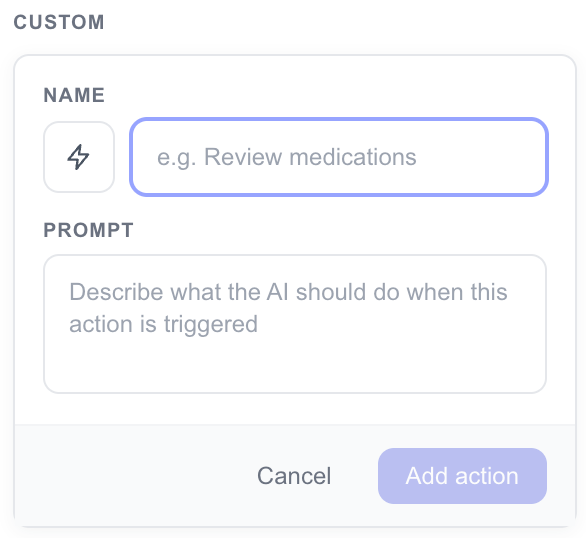
➕ Make Your Own: You can click the (+) button to create your own custom shortcut for tasks you repeat every day.
6. Artifacts (Your Dedicated Editing Space)
When you ask Cortico to write something long (like a letter or a report), it will open a separate window on the side called an Artifact. This keeps your chat conversation separate from your paperwork.
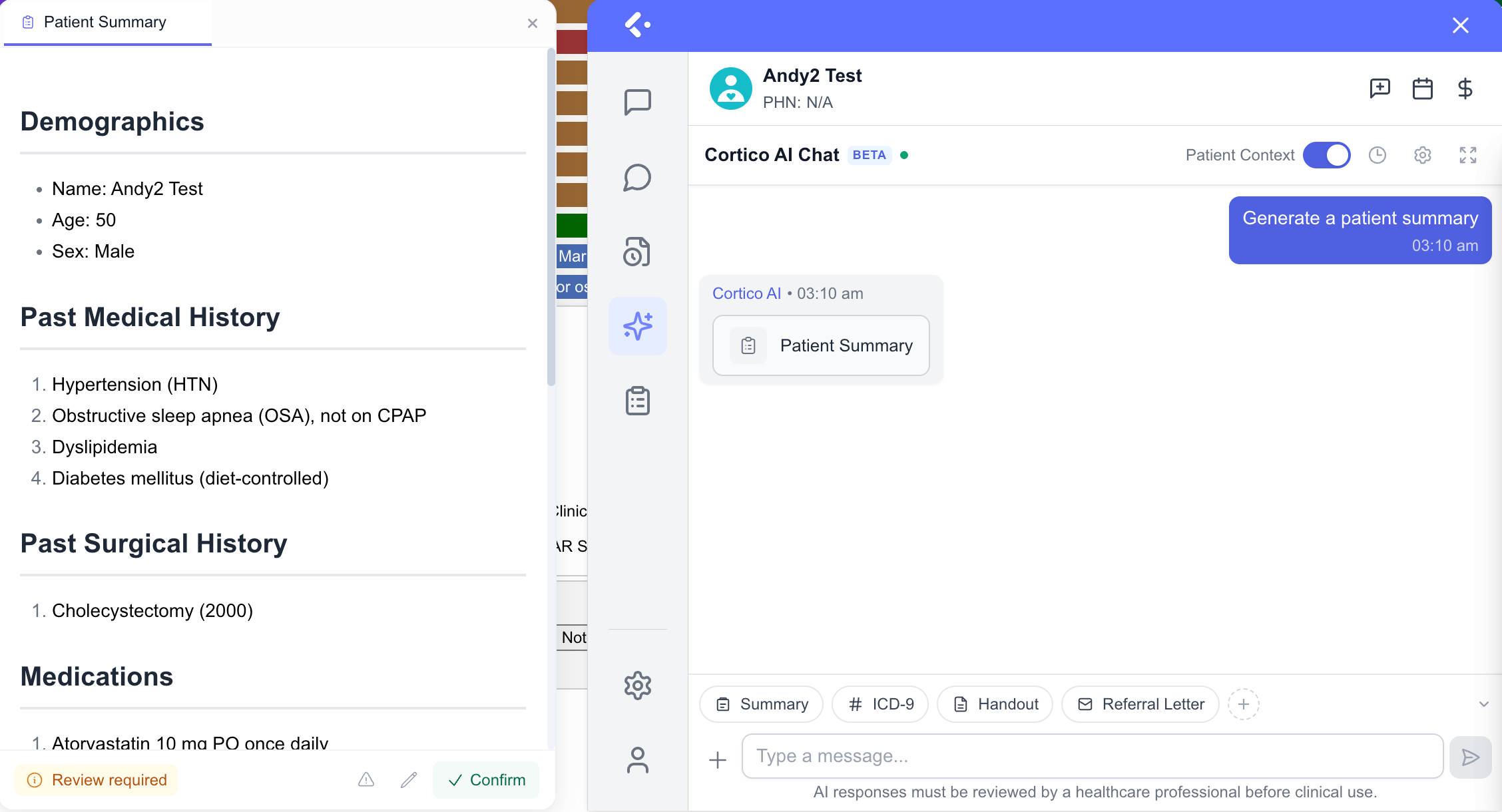
How to change it: You can type a message to the AI asking it to change something (e.g., "make it shorter"), or you can click Edit and type directly into the document yourself.
Tabs: You can open multiple documents at once in tabs, just like a web browser.
Sharing: Once it looks perfect, you can instantly print it as a PDF, email it, or copy the text.
7. Safety, Privacy, and Review
Cortico AI is designed to support healthcare professionals in a safe, private, and reviewable way.
While at Cortico, throughout the training and development process, we constantly incorporate physician feedback and rigorous evaluation benchmarks; AI-generated content should always be treated as a draft or assistant-generated output.
The healthcare professional remains responsible for reviewing the information, confirming accuracy, and deciding what should be used, shared, copied, printed, emailed, or saved.
Cortico AI is designed with healthcare privacy and data protection in mind.
Patient information is encrypted and handled securely. Patient data is not reviewed by unauthorized individuals, and information is kept within approved United States or Canadian infrastructure.
Cortico AI does not use patient data to train external AI models. Information is used only to support the specific task being performed inside the workspace.
The goal is to make AI useful in clinical workflows while keeping patient information private, secure, and under the control of the healthcare professional.