

Overview
Scheduled Send lets clinic staff compose a patient message in Cortico Messenger and schedule it for later delivery. Cortico stores the message and sends it automatically at 8 AM on the selected date.
This is useful when you are completing follow-up work outside clinic hours or want a message to reach the patient during regular working hours on a specific day. Before the message sends, you can review, edit, reschedule, cancel, or send it immediately.
Scheduled Send is available in the Cortico plug-in for all plans. Contact the CS team to enable it.
Schedule a Message
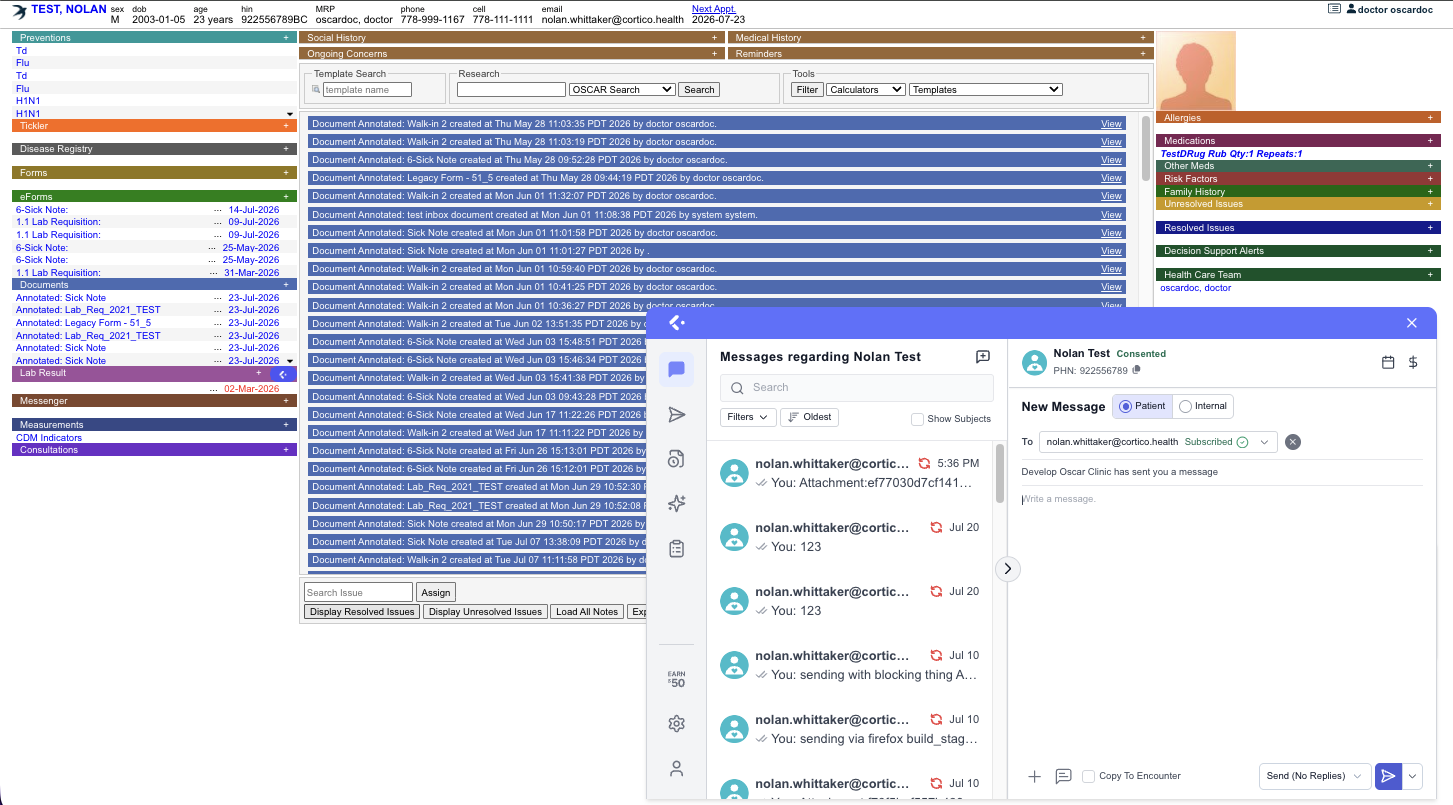
From the encounter notes page, open the Cortico Messenger and start a new patient message. Scheduled messages can be sent to a patient’s email address or phone number. Enter the message subject (if sending by email) and body text as normal.
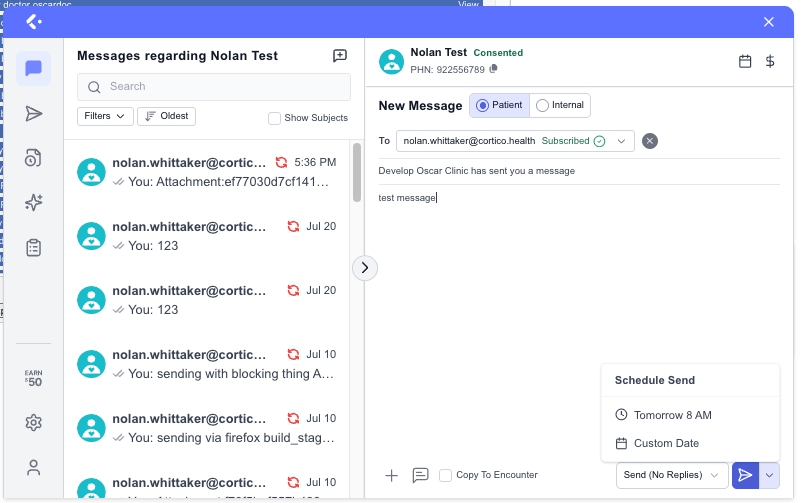
Hover over the down chevron icon beside the Send button on the bottom-right of the message window. A small pop-up menu will appear. On this menu you can either choose to send schedule the message for tomorrow at 8 AM, or select a custom date for sending.
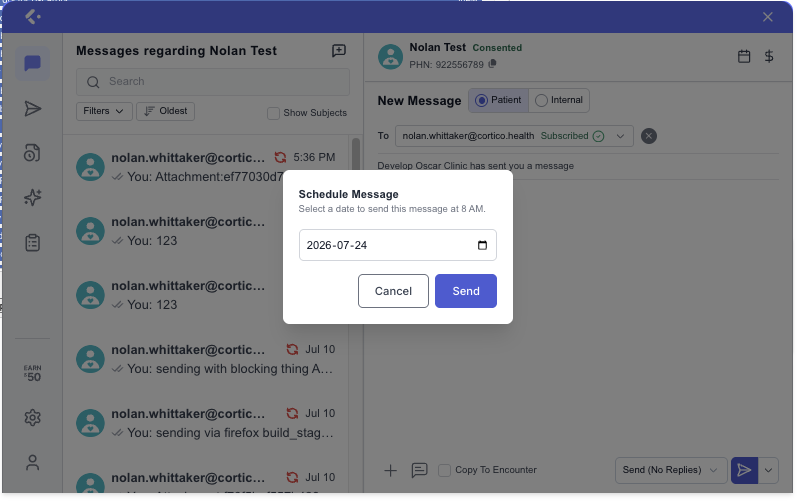
If "custom date" is chosen, a new window will appear where you can specify the date on which the message should be sent. The message will always be delivered at 8 AM on your chosen date.
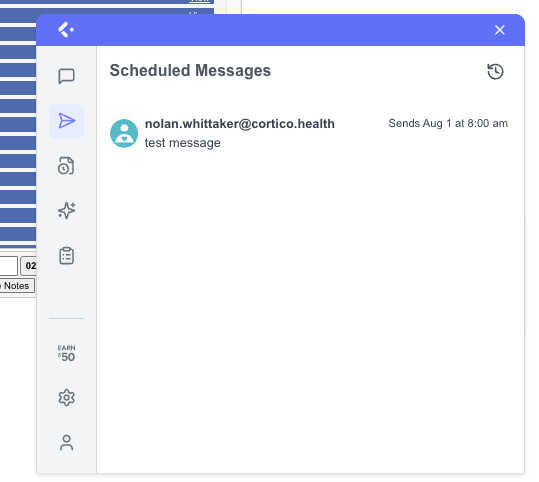
You can view all scheduled messages by clicking on the paper airplane icon on the left side bar of the plug-in.
Hover over a scheduled message to view its actions. From here, you can delete, edit or reschedule a scheduled message. You can also choose to send the message immediately, circumventing the scheduled time.
