

When a patient sends a document back to the clinic via Cortico, there are two ways to access and download it.
Scenario 1: Finding the file in the patient's virtual chart
Search for the patient
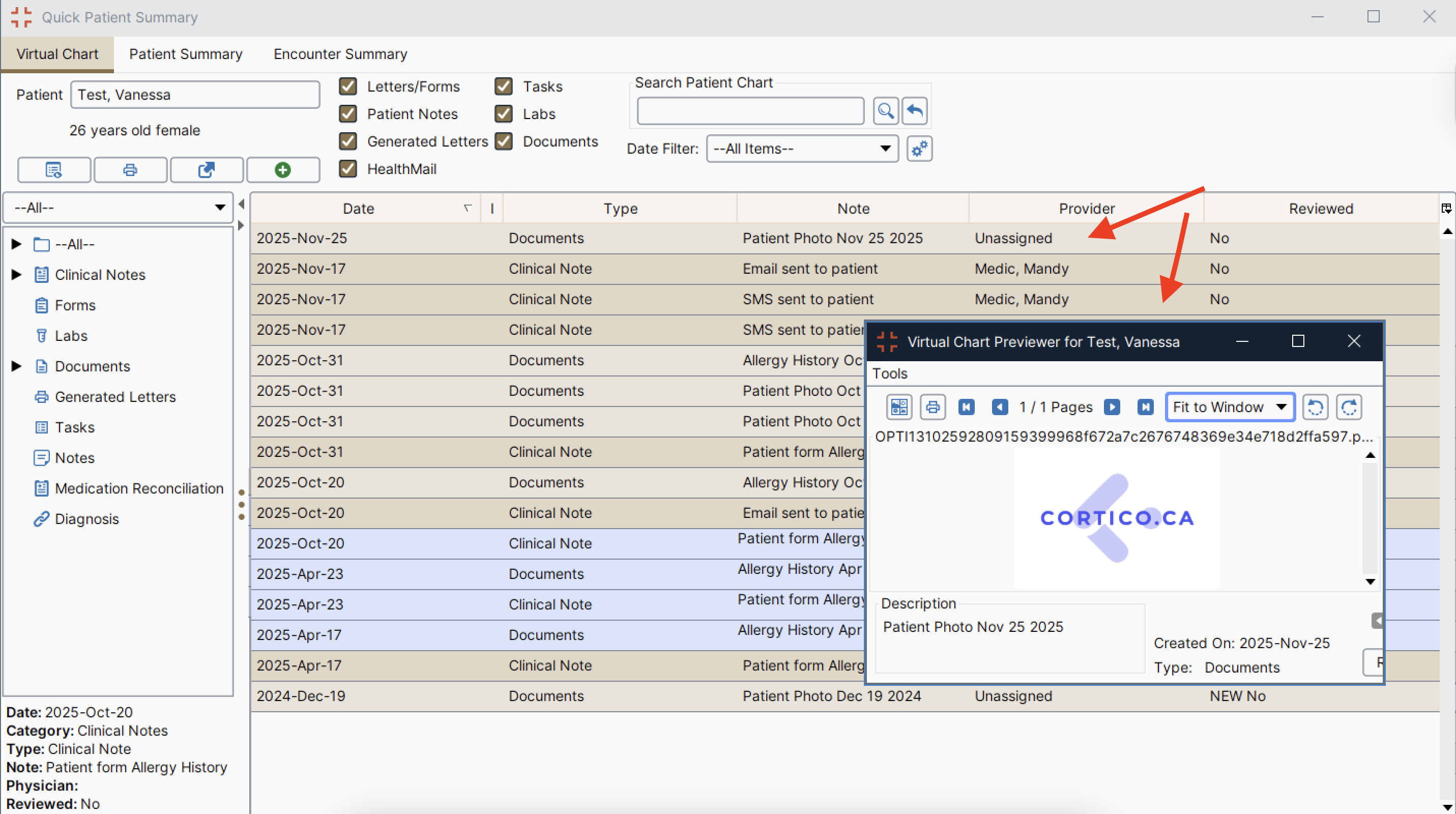
Access their Virtual Chart
Locate the file sent from the patient: it will appear as a "Document", filtered by "date".
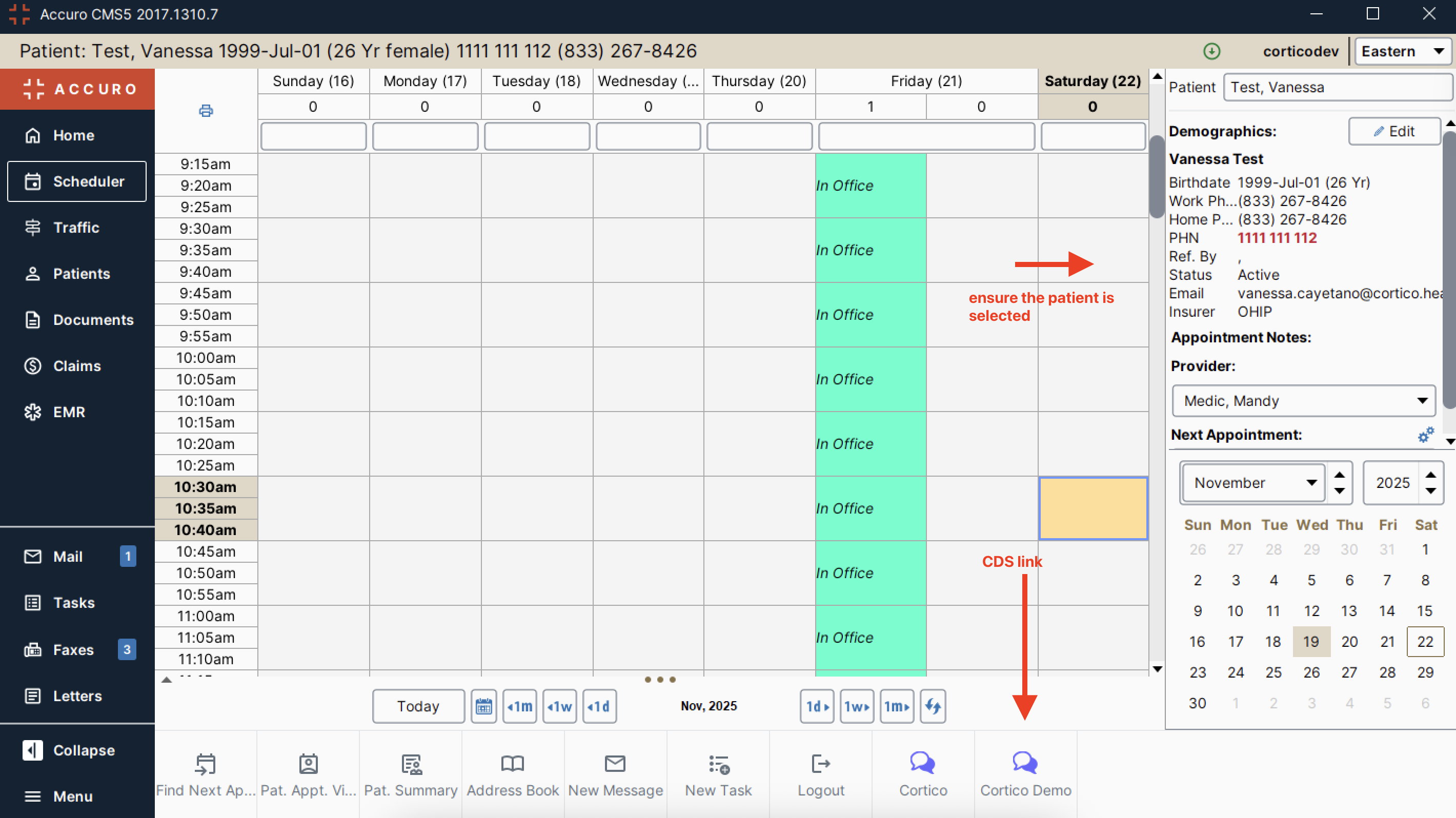
Scenario 2: Manually accessing the file through your Cortico CDS link
Click on your Cortico CDS link (if you are unfamiliar with this, please contact our Customer Success team at help@cortico.health).
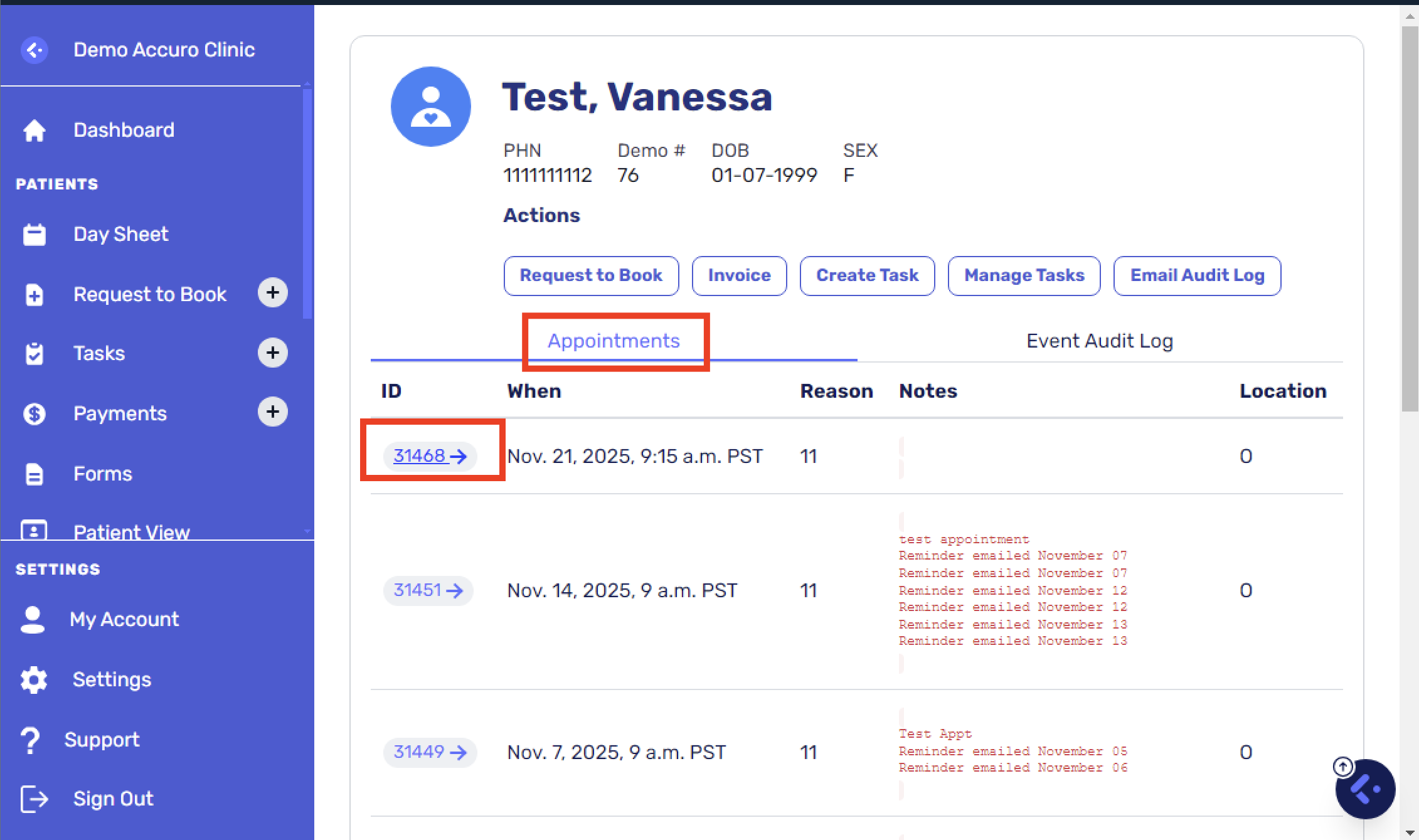
Once the CDS link loads, click on "Appointments", then click on the upcoming appointment for the patient.
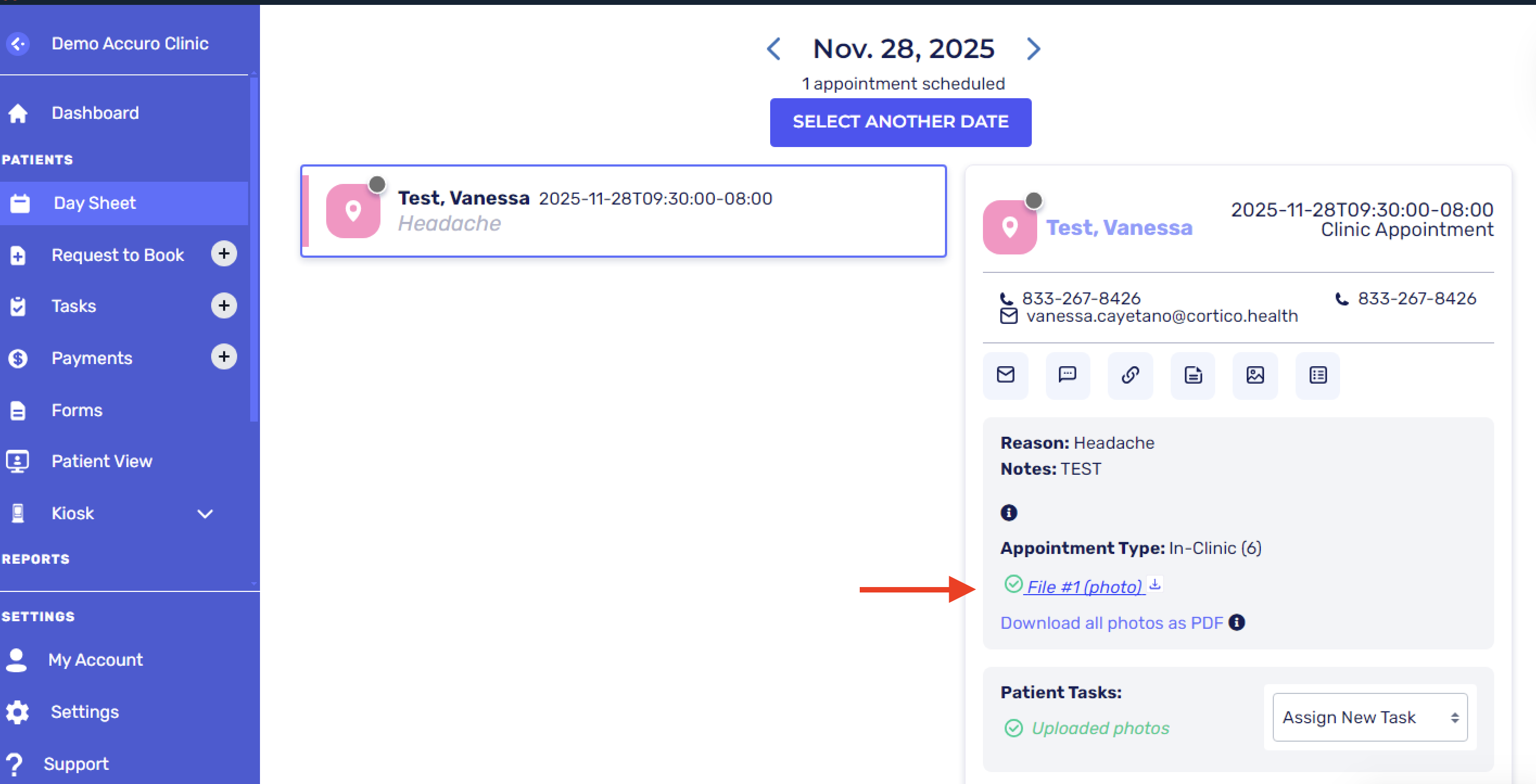
You'll see that the patient's file has been uploaded. Click on the file to download it to your desktop.
Choose the folder on your desktop to download the file (ex. "Local Disk (the name of your desktop)" > "Downloads")
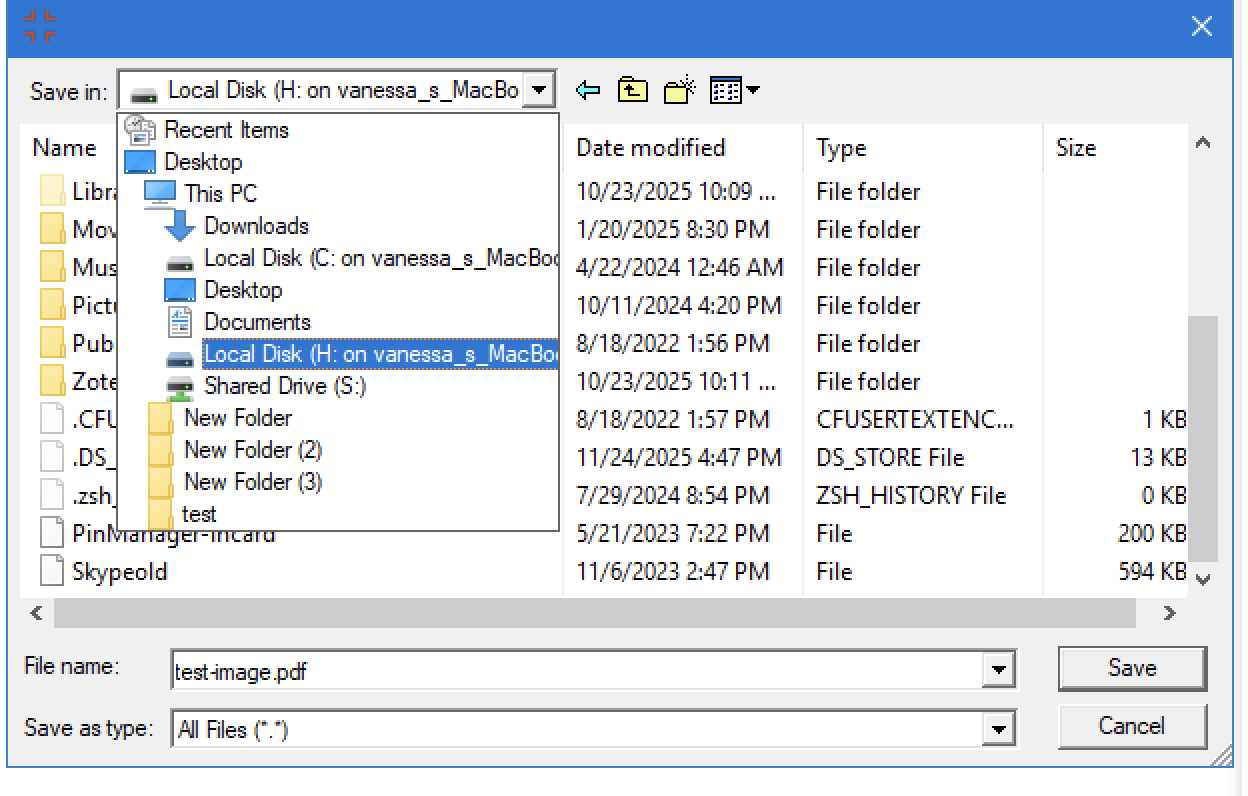
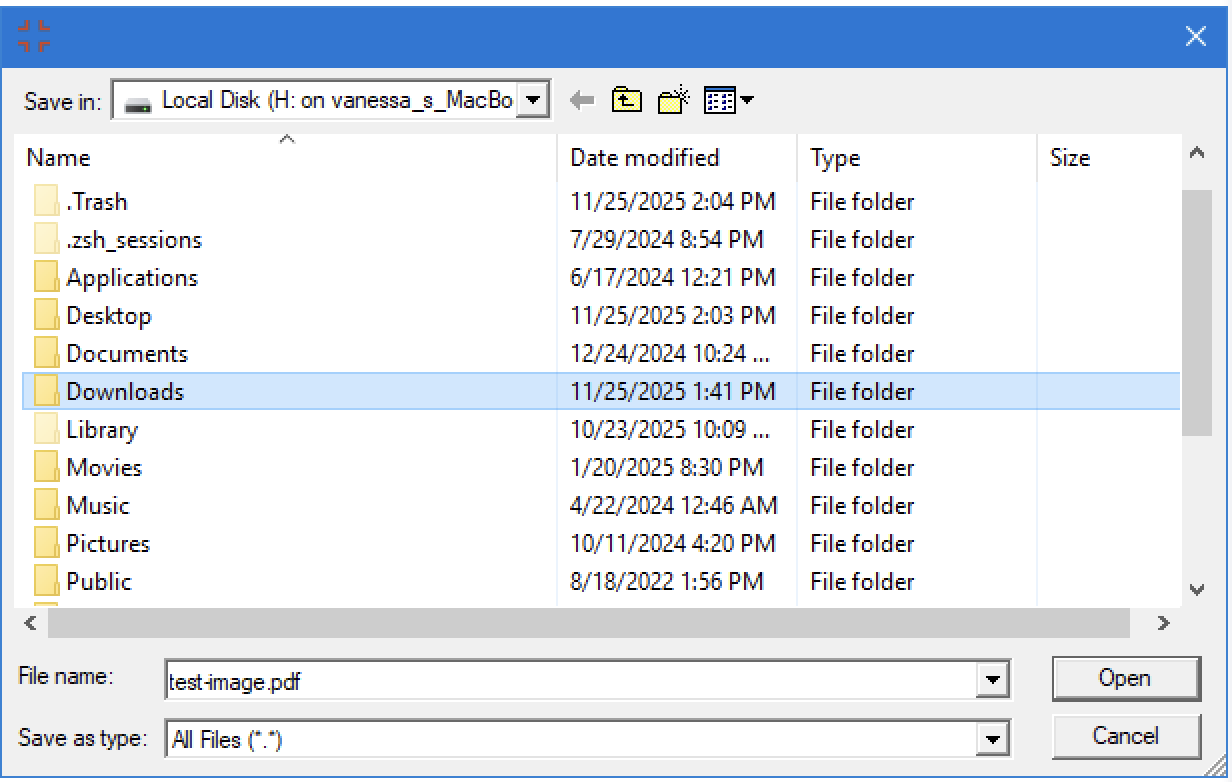
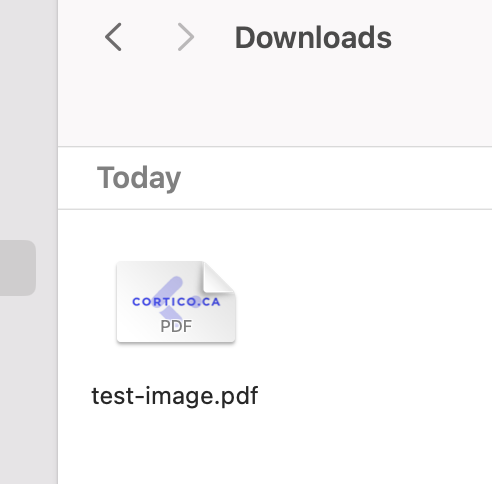
Once downloaded, go to your desktop folder (i.e., "Finder" for Mac or "Folders" for Windows) and locate the patient's file
Upload the file to the patient's chart
If you ever have questions, please feel free to contact our help team at help@cortico.health!