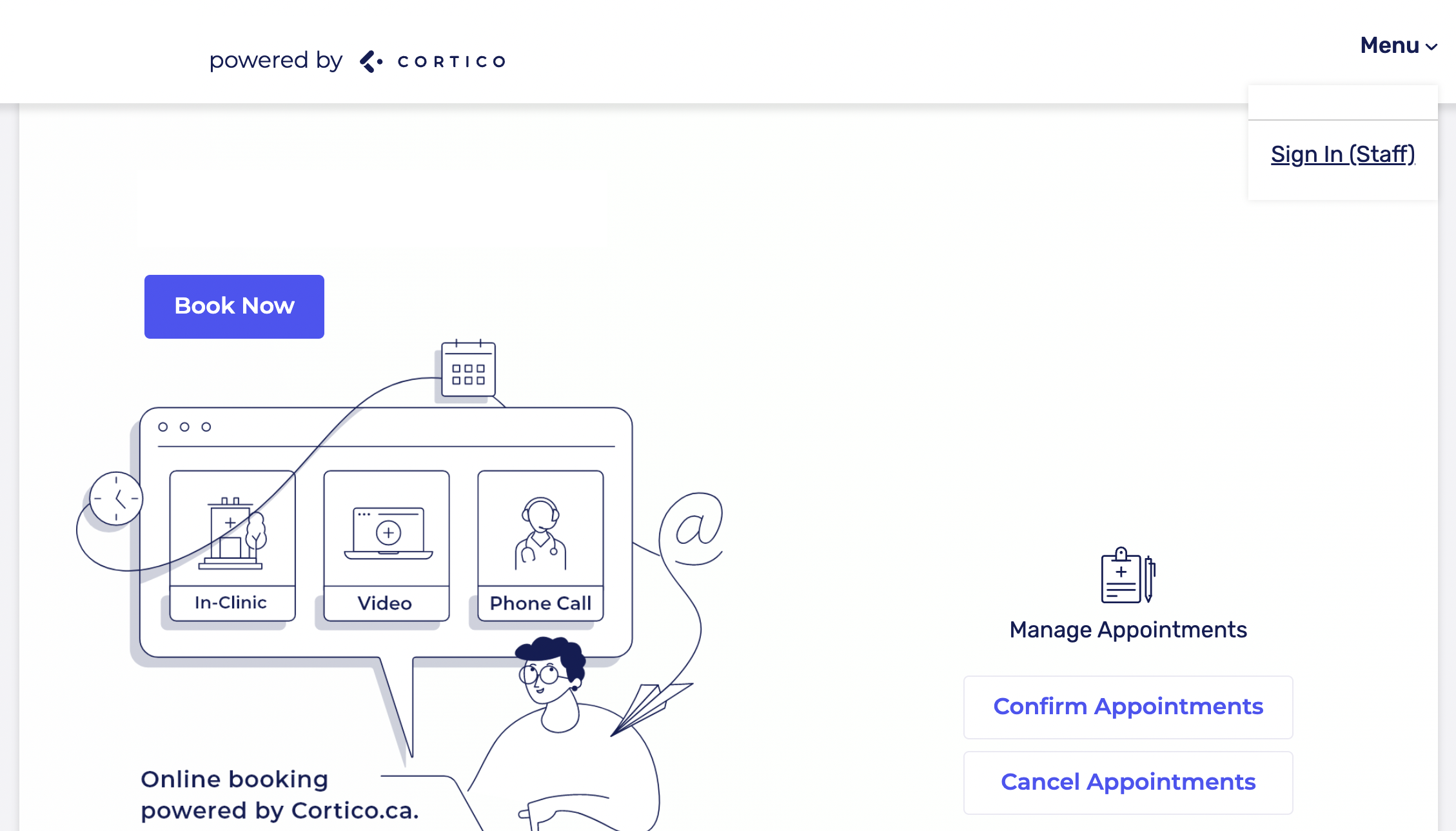
1. Go to your clinic website (clinicname.cortico.ca) and click on "Menu" in the top right corner. Click "Sign-in (Staff)" from the drop-down list and sign in.
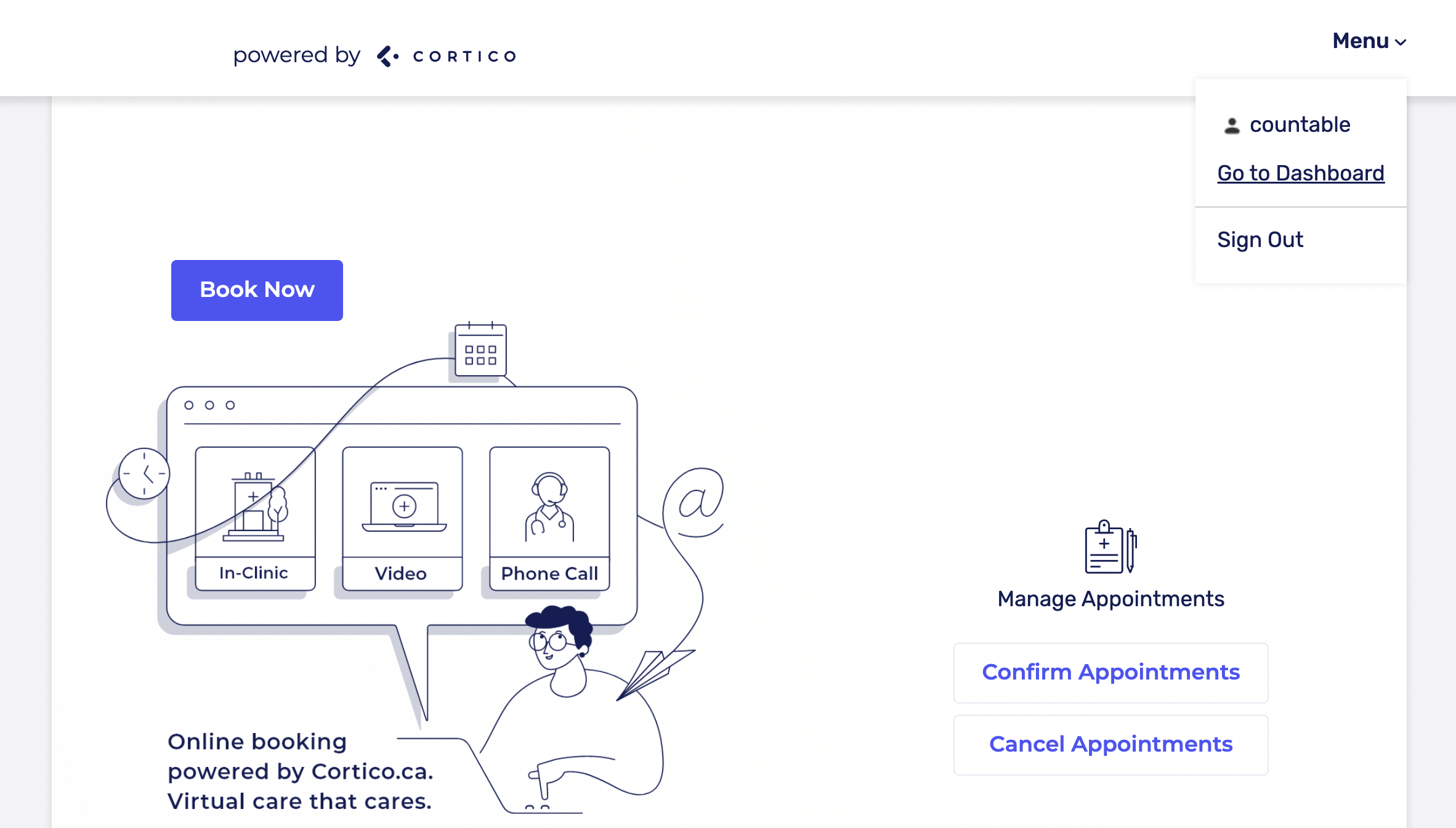
2. When you have signed in, click on "Menu" again and click "Go to Dashboard"
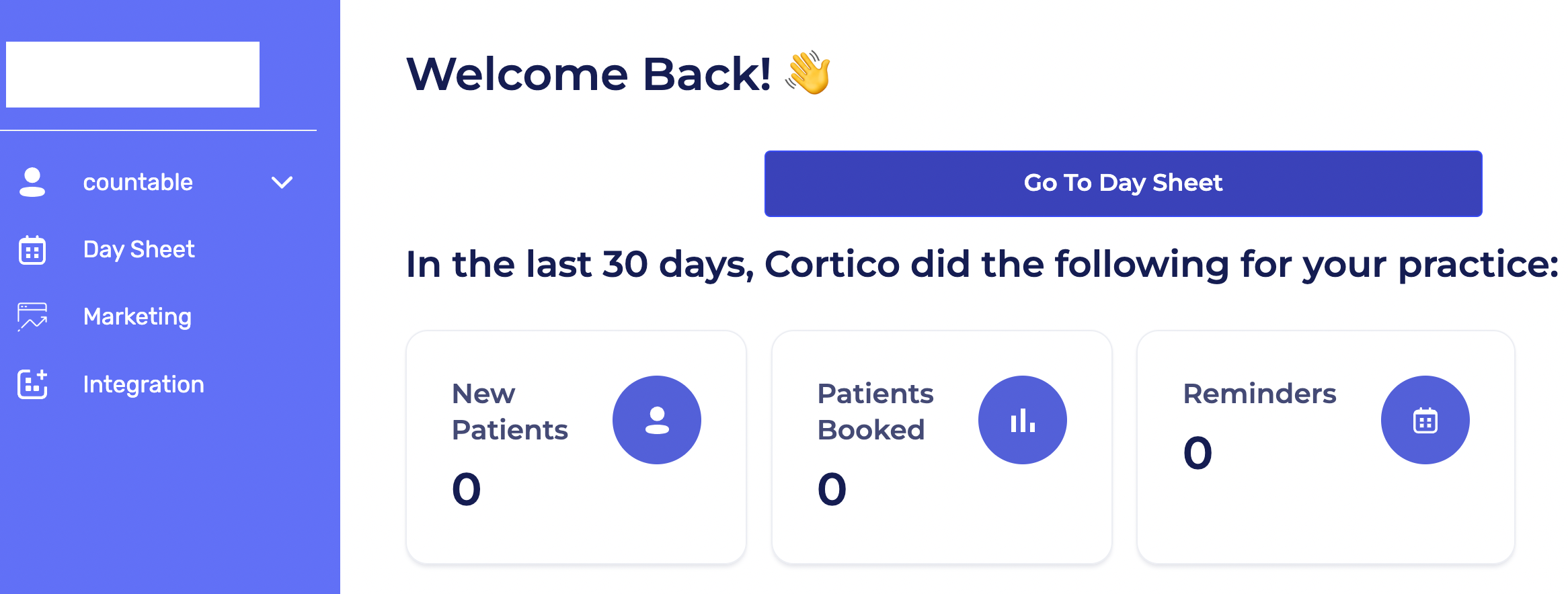
3. From here, click on the blue "Go to Day Sheet" button
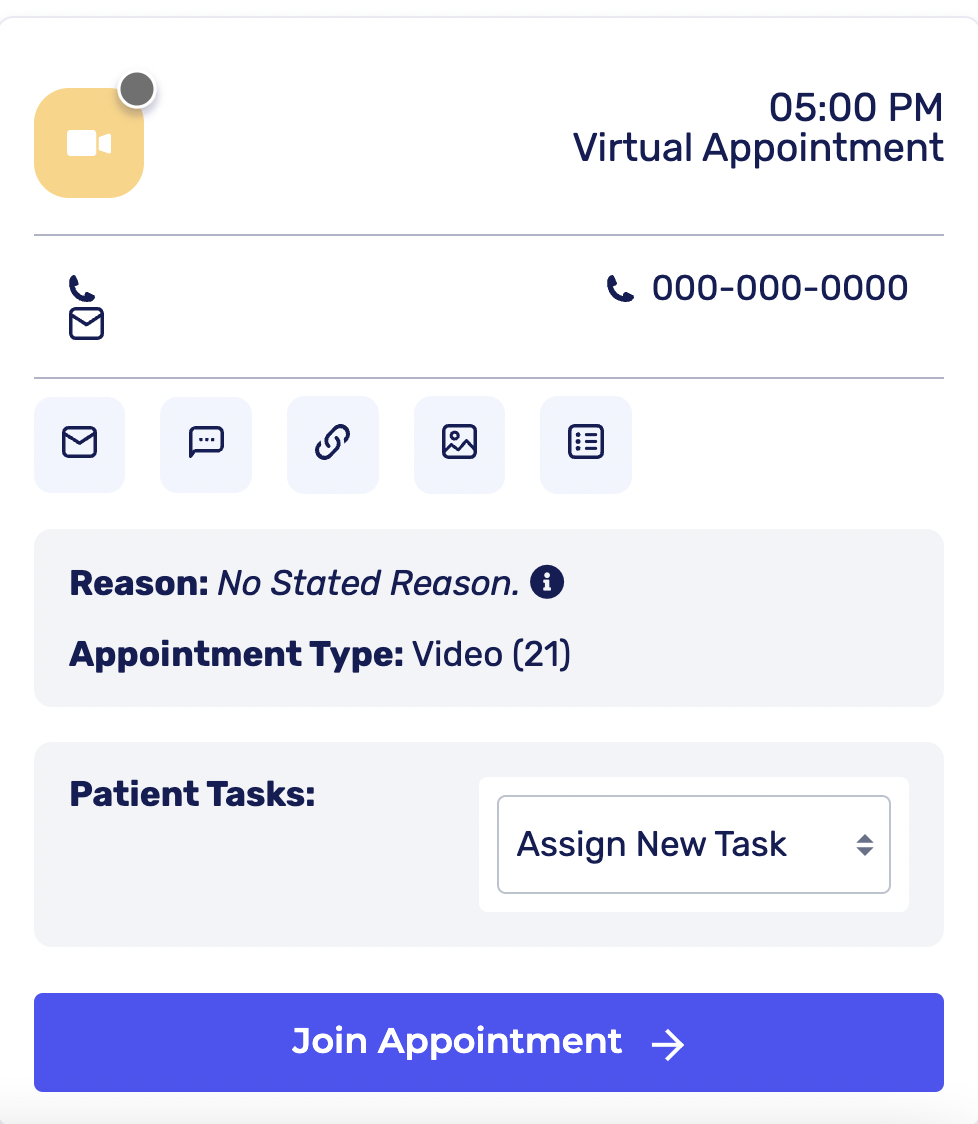
4. This will bring you to your Day Sheet, where all of your appointments for the day are listed. Find the video appointment you want to enter, click on it and then click on "Join Appointment" near the bottom right.
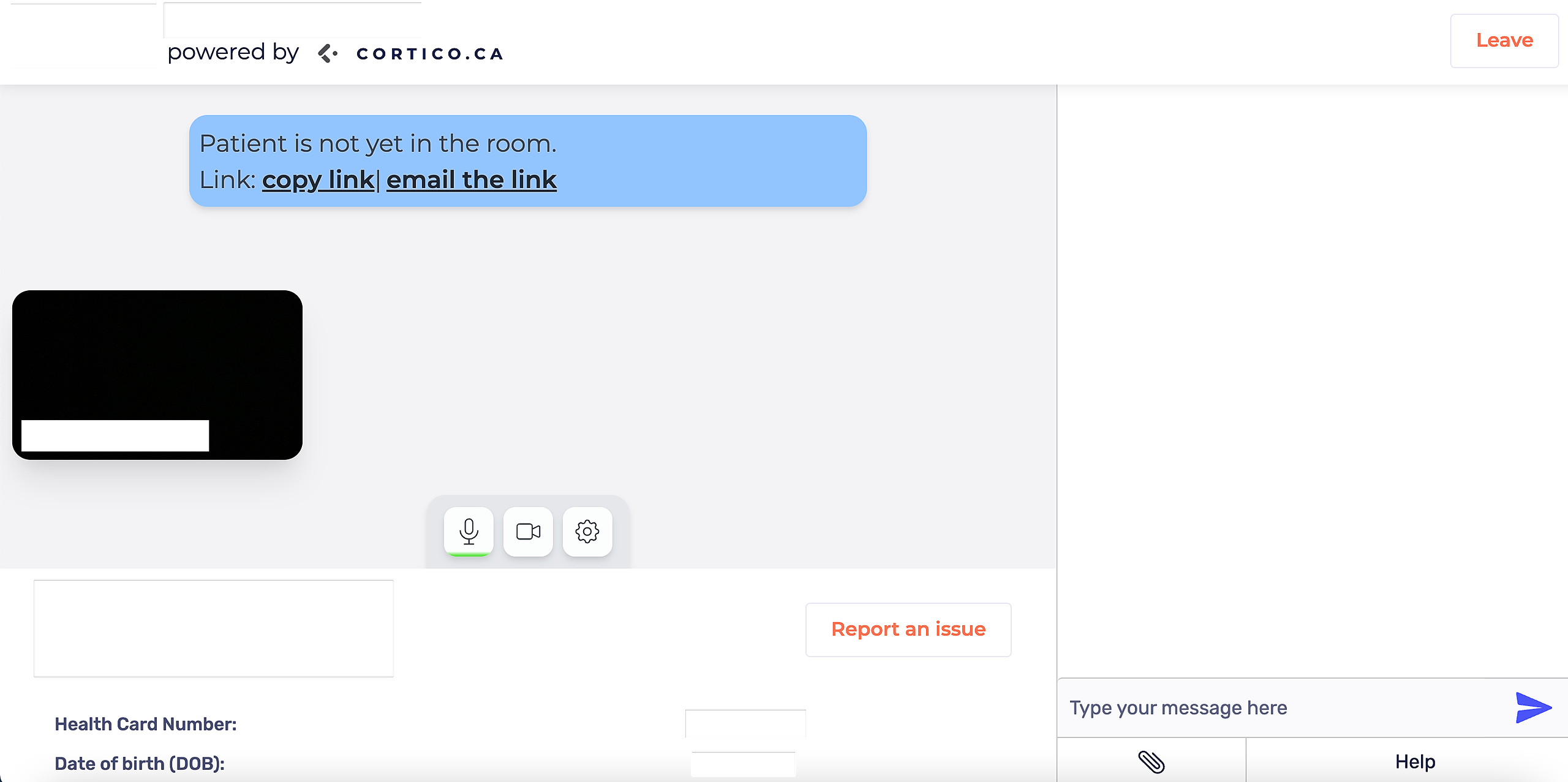
5. You should now be in the video call. Prior to clicking "Join Video Call" you are able to use the chat function on the right-hand side of the screen, and the patient will be able to see those even before you enter the call. Once you are ready, click "Join Video Call"
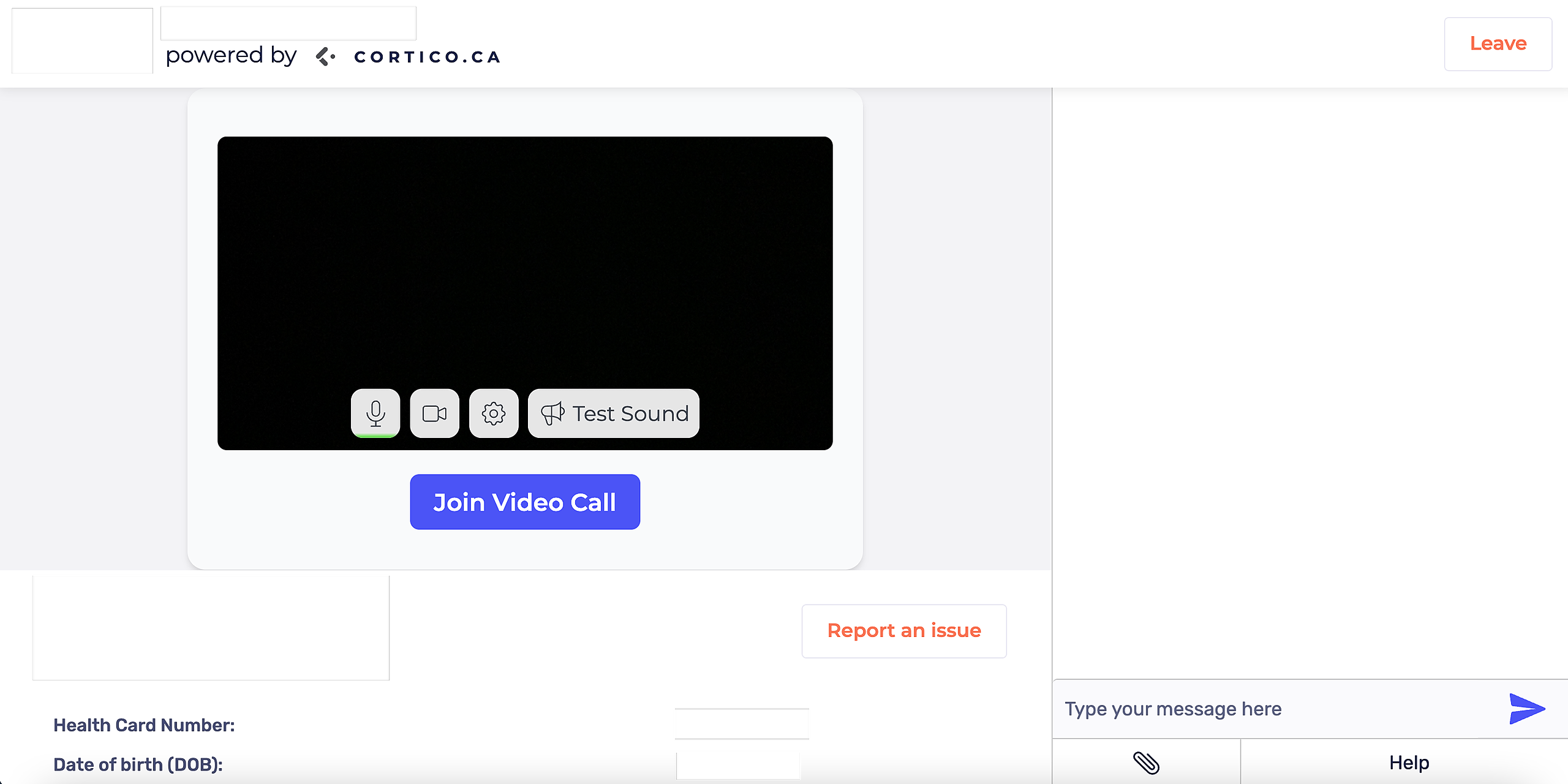
6. After this, you have now ready for the appointment. If the patient isn't in the call yet, you should see an option pop-up that would prompt you to email the patient. This will send them an email containing the video link.